MacBook battery — why it swells, loses capacity and what damages it
The battery is the only part of a MacBook that wears out by its very nature. How quickly it ages — and whether it does so safely — depends largely on how the computer is used 🔋
How a lithium-ion battery works
Each cell is made of several thin layers, rolled up or stacked on top of each other:
- cathode — a lithium-containing metal oxide,
- anode — graphite,
- separator — a thin, porous plastic film that keeps the electrodes from touching,
- electrolyte — a lithium salt dissolved in organic solvents, soaking all the layers.
While charging, lithium ions pass through the separator from the cathode to the anode and settle between the layers of graphite. When running on battery, they travel back to the cathode while electrons flow through the circuit, powering the computer.
In MacBooks the cells are flat “pouches” in a soft foil casing. This keeps the battery thin, but when something goes wrong, the cell visibly changes shape.
Why a battery swells
Swelling can have two completely different causes — and they look different.
Gas in the cell — the battery puffs up like a cushion. Over time the electrolyte breaks down, and the products of that breakdown are gases. They have no way out of the sealed pouch, so the cell puffs up like a cushion and feels soft. The process is accelerated by keeping the battery fully charged for long periods, high temperatures, deep discharges and simply the age of the cell. In a MacBook it usually shows as a raised trackpad that stops clicking, a bulging bottom case or a keyboard being pushed up.
A short circuit inside the cell — the cell hardens and deforms. When the separator is punctured or worn through, the anode and cathode layers touch. Current then flows inside the cell, the short-circuit spot heats up, and the electrodes and electrolyte decompose. The cell deforms and becomes hard. The separator can be punctured by a hard particle pressed into the cell, mechanical damage (e.g. after a drop) or dendrites — needle-like lithium growths that form, among other things, when charging at low temperatures. In the worst case the short leads to an uncontrolled rise in temperature, and even self-ignition.
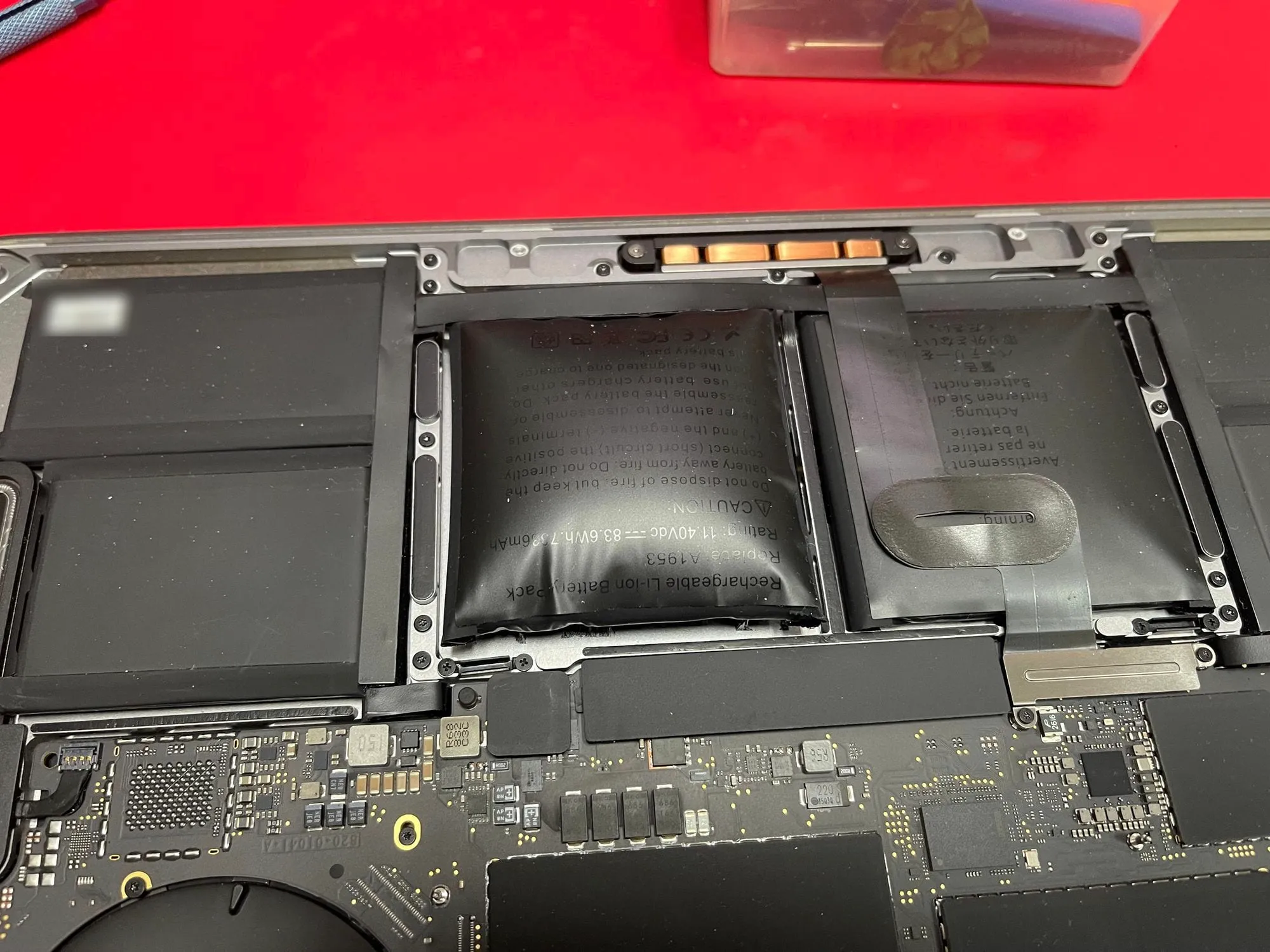
A swollen battery cell in a MacBook Pro — clearly bulging compared with the cells next to it.
⚠️ A swollen battery must not be charged, pressed or punctured. It’s best to switch the computer off and take it to a repair shop as soon as possible.
Sand, dirt and dust
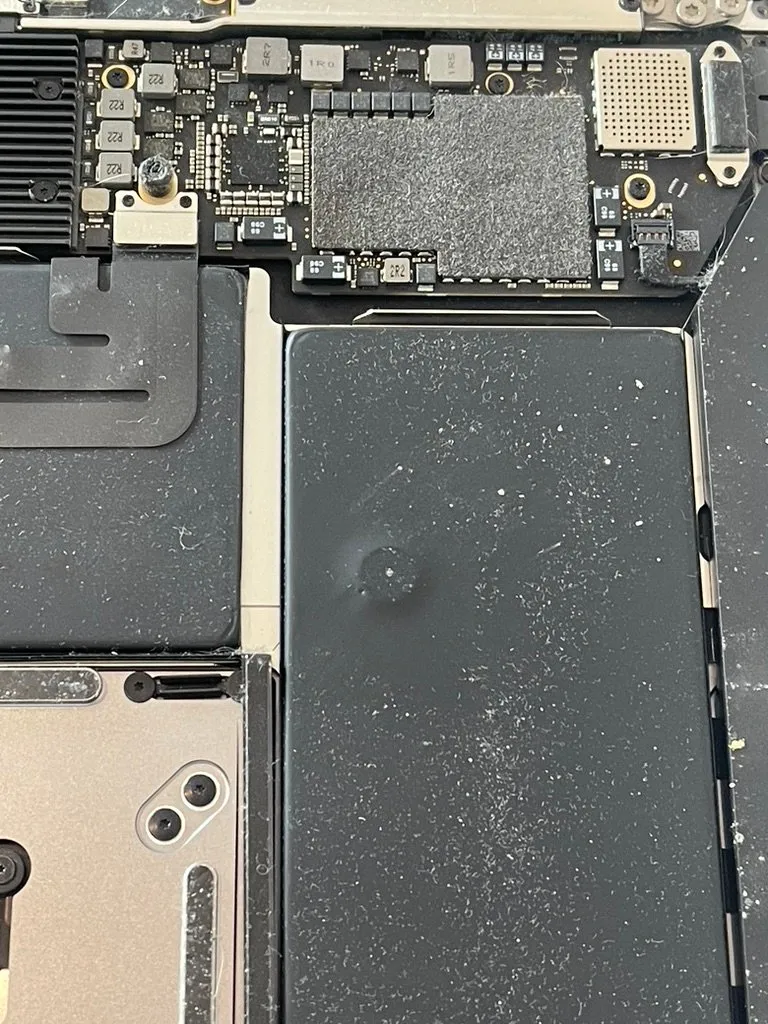
On the bottom-case side, the cells in a MacBook are protected only by a thin film. Hard particles — sand (grains of quartz) or compacted dirt — get inside the case, and when the bottom case is pressed they are pushed into the cell. Such a dent can puncture the separator and cause a short circuit inside the cell.
That’s exactly what happened to the battery in the MacBook Air A1932 in which dirt dented a cell — it’s the one in the photo above. Sand also destroys display cables, as described in the post about sand in a MacBook Pro A2338.
Why not to keep a MacBook on the charger all the time
A cell ages fastest when it’s fully charged and warm. At 100% the cell voltage is at its highest, which speeds up electrolyte breakdown and the growth of a passivation layer on the anode (the so-called SEI). This layer permanently binds some of the lithium, which then no longer takes part in the battery’s work.
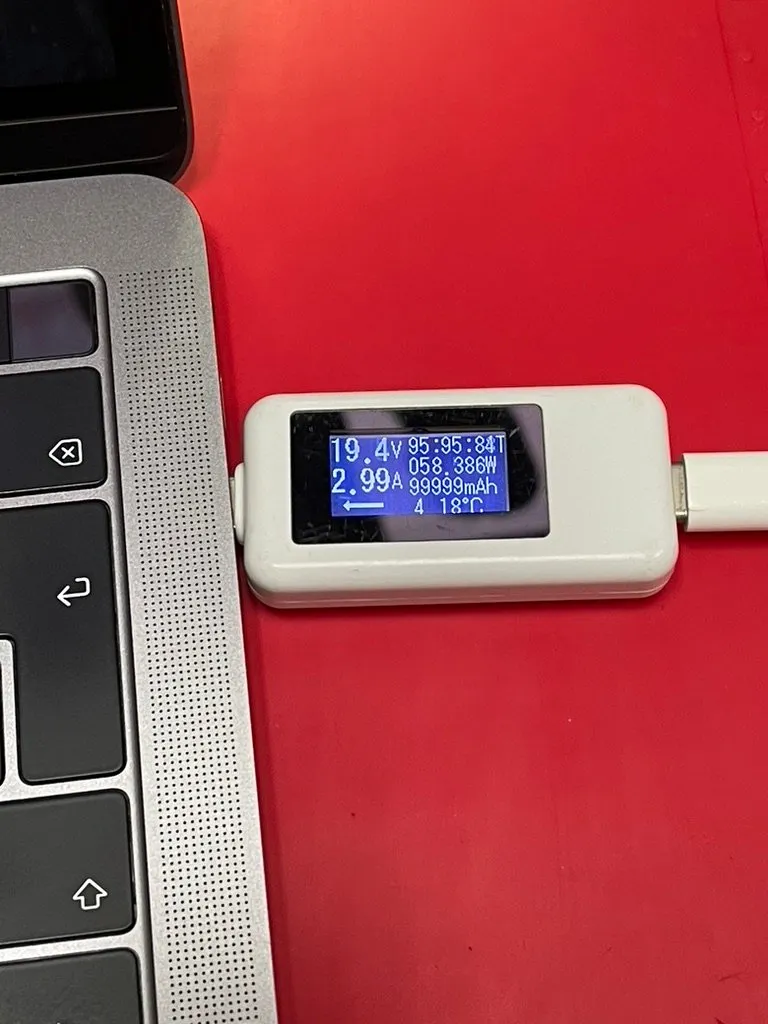
A USB-C meter shows the voltage and current a MacBook is charging at.
The effects are twofold: capacity drops, so the computer runs for less time without the charger, and internal resistance rises, so the battery heats up more and copes worse with heavy loads. A MacBook that sits on a desk for months plugged in with the battery at 100% in practice wears it out faster than a computer that regularly runs on battery.
What helps:
- Optimised Battery Charging in macOS (System Settings → Battery → the ⓘ button next to Battery Health) — the computer learns your routine and keeps the battery below 100% for longer.
- Running on battery from time to time instead of being plugged in constantly.
- Avoiding heat — don’t leave the computer in the sun, in a hot car or on a soft surface that covers the case.
- Storing it half-charged — if the computer is going to sit unused for a while, don’t leave it either full or completely flat.
According to Apple, a MacBook battery retains up to 80% of its original capacity after 1,000 full charge cycles. One cycle means using 100% of the capacity — not necessarily in one go.
When to replace a MacBook battery
It’s worth doing when macOS shows the “Service Recommended” message, battery health has dropped clearly below 80%, or the computer shuts down even though the indicator shows charge left. A swollen battery is always a sign for immediate replacement. More about MacBook battery replacement.